Showing posts with label Ad Blocking. Show all posts

Sunday, July 5, 2020

Technitium DNS Server v5 Released!

I am really happy to announce the release of Technitium DNS Server v5. This version is a major upgrade with many new core features, a lot of memory and CPU optimizations, and multiple bug fixes done. Download the latest update now!

Technitium DNS Server v5

Technitium DNS Server is a free, open source software that can be used by anyone be it a novice or an expert user. The server aims to have a user friendly approach, providing an easy to use web based GUI, and with defaults that allow the server to run out-of-the-box.

The DNS server can be used to self host domain names, used as a local resolver on a desktop or laptop computer, or used as a DNS server for the entire local network. It supports many useful and powerful features like blocking domain names using block lists, overriding records for any domain, use forwarders or conditional forwarders with DNS-over-TLS or DNS-over-HTTPS, and host your own DNS-over-TLS or DNS-over-HTTPS service.

The DNS Server is cross platform and can run on Windows, Linux and macOS. It has small footprint and thus can run even on a Raspberry Pi.

Once you have used Technitium DNS Server, you will realize how powerful it is and how silly it is to rely on your ISP's DNS servers.
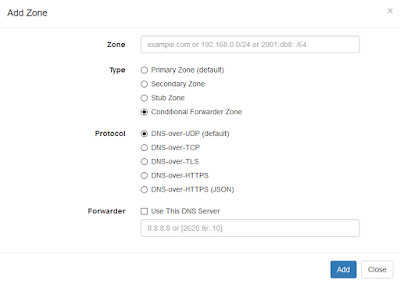
Conditional Forwarder Zone

Features that you may find interesting in this release:
  • QNAME minimization support in recursive resolver for privacy.
  • ANAME propriety record support to allow using CNAME like feature at zone root.
  • Primary and Secondary zone support with NOTIFY implementation and zone transfer support. 
  • Stub zone support that allows the DNS server to keep track of the name servers of the zone.
  • Conditional Forwarder zone support which allows to configure multiple forwarders for a specific domain name with all protocol support including DNS-over-HTTP or DNS-over-TLS protocols.
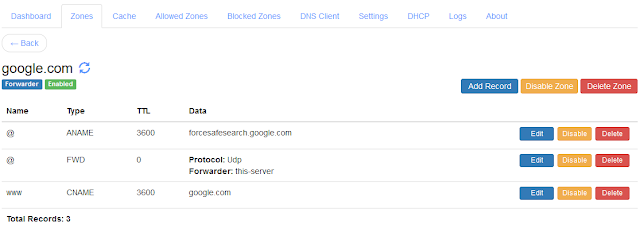
  • Ability to override records of a live domain name using conditional forwarder or stub zone. This allows you to easily implements things like forced Google safe search or YouTube's restricted mode.
  • Concurrent querying with more than one forwarder allows to get fastest response from multiple forwarders.
  • Option to change the DNS Server local ports for TCP and UDP protocols. 
Read the change log to know more in details about the latest release.

Conditional Forwarder Zone with Overridden Records For Google Force Safe Search

The DNS Server code has been optimized for CPU, memory and concurrency. The server now notably has a very small memory footprint which allows loading a couple of million blocked domain names easily via the blocks list URLs on a Raspberry Pi with just 1 GB RAM. The time it takes to load the blocked lists too has improved significantly.

The DNS server now internally uses a new ByteTree data structure which is a complete lock less implementation allowing concurrent threads to do read and write operations. This allows the DNS server to handle large amount of concurrent requests easily while also allowing it to update the cache data parallelly.

With the limited hardware that is available with me for testing, the DNS server was load tested on a machine with Intel(R) Core(TM) i7-8700 CPU @ 3.20GHz on a 1 Gbps wired Ethernet network. The server could resolve more than 2 million requests per minute with an average 30% CPU utilization consistently for 3 hours. The client machine that was used to bombard requests however would peak out at 100% CPU preventing from adding any more load on the server for the load test. This update is supposed to fix issues in the previous version that caused the CPU to peak, failing to handle load more that couple of thousand requests per second.

Any comment or feedback is really appreciated and helps a lot in adding new features and fixing bugs. Do send your feedback or support requests to support@technitium.com. For any feature request or reporting bug, do create an issue on GitHub.

The DNS Server code is available under GNU General Public Licence (GPL) v3 on GitHub.

You can now make your contributions to Technitium by becoming a Patron and help in developing new software, updates and adding more features possible. Become a Patron now!

Saturday, October 27, 2018

Blocking Internet Ads Using DNS Sinkhole

Technitium DNS Server is an open source software that can be effectively used to block Internet Advertisements (Ads), adware, and malware on your computer or your local network using publicly available block lists.

Combined with DNS-over-TLS and DNS-over-HTTPS, Technitium DNS Server provides a good level security and privacy from network level DNS attacks and from adware. This makes it a must have tool if you are a privacy and security conscious person.

Technitium DNS Server is cross platform and works on Windows, Linux or macOS.

Technitium DNS Server v2.0

How Does It Work?
The Ad blocking feature works using the DNS Sinkhole method. With this feature enabled, for all the blocked domain names, the DNS Server will respond with 0.0.0.0 IPv4 address and :: for IPv6 address making the Ads fail to load making the website you visit free from Ads. This can not only block Ads but also adware, malware, social networks, porn etc. based on the block lists you configure in settings.

On your computer, you need to install the DNS Server and configure your network adapter's DNS settings to use the locally hosted DNS server. Once this is done, you need to configure the Block List URL settings to start blocking Ads. Once the DNS Server loads the block lists, it would respond with 0.0.0.0 IP address for the blocked websites making them fail to load.

You may also install the DNS Server on any spare computer on your network and configure your home or office router with IP address of this spare computer as DNS server in DHCP settings. With this setup, all your computers and devices like mobile phones would use the installed DNS Server blocking Ads and malware domains on all devices without installing any additional software on them.

Configuring Block Lists
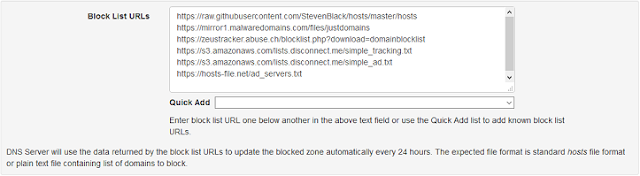
To enable Ad blocking, you need to configure Block List URLs in the settings. Known and popular block lists are already listed in the Quick Add drop down list from where you can just click and add those URLs.

Technitium DNS Server Block List Configuration

If you are not sure, just select the Default option from the Quick Add drop down list and a default set of block list URLs would get configured.

Once done, click the Save Settings button at the bottom of the page to save the changes and start the block list download background process. These configured block lists are automatically downloaded every 24 hours to keep the DNS Server blocked zone updated.

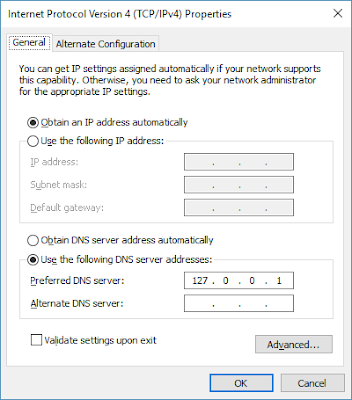
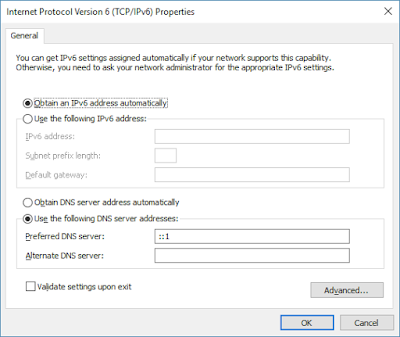
If you have the DNS server installed directly on your computer then don't forget to configure your network adapter's DNS server settings to 127.0.0.1 (for IPv4) and ::1 (for IPv6). Without these network configuration changes, the DNS Server wont get any queries to respond to and things wont work as intended.

If you setup the DNS server to be used on the network by all devices then do configure your router's DHCP config and set the IP address of the computer running the DNS server as the DNS for your network. By configuring the router's DHCP, you don't need to manually configure any of your devices on the network.

IPv4 DNS Server Network Configuration

IPv6 DNS Server Network Configuration

That's It!
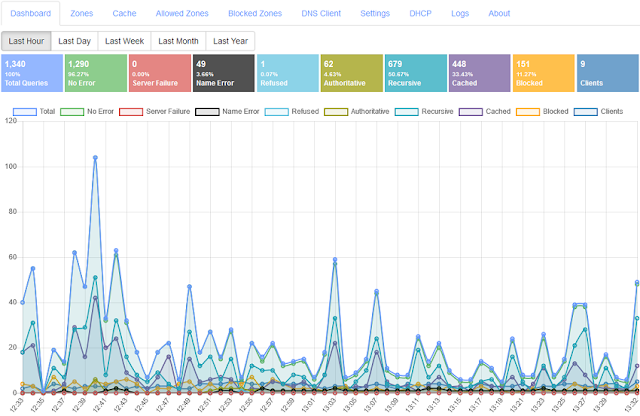
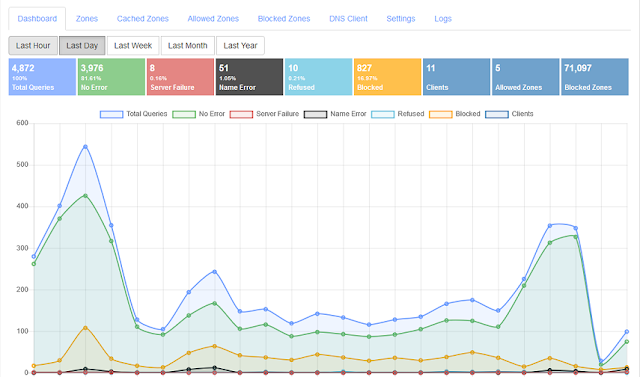
Once the configuration is done, just check the Dashboard on the web console after a couple of minutes to see the number of blocked domains in the Blocked Zones widget. If there are too many block list URLs configured, it may take few more minutes for all of them to get downloaded and loaded.

If you have any further queries, do write them below as comments or send an email to support@technitium.com.